

Defender for Cloud: How It All Fits Together
A clear breakdown of the three pillars of Microsoft Defender for Cloud: Defender Plans, MCSB, and Compliance Initiatives, and how they relate to Secure Score and the Regulatory Compliance blade.
If you’ve ever stared at the Defender for Cloud portal wondering why a machine shows as compliant in your CIS tool but still triggers a recommendation in Azure, you’re not alone. The confusion usually comes from not knowing which of the three pillars generated the alert, and how they relate to each other.
This post breaks down the structure of Defender for Cloud: what the pillars are, what drives the Secure Score, and what the Regulatory Compliance blade actually shows.
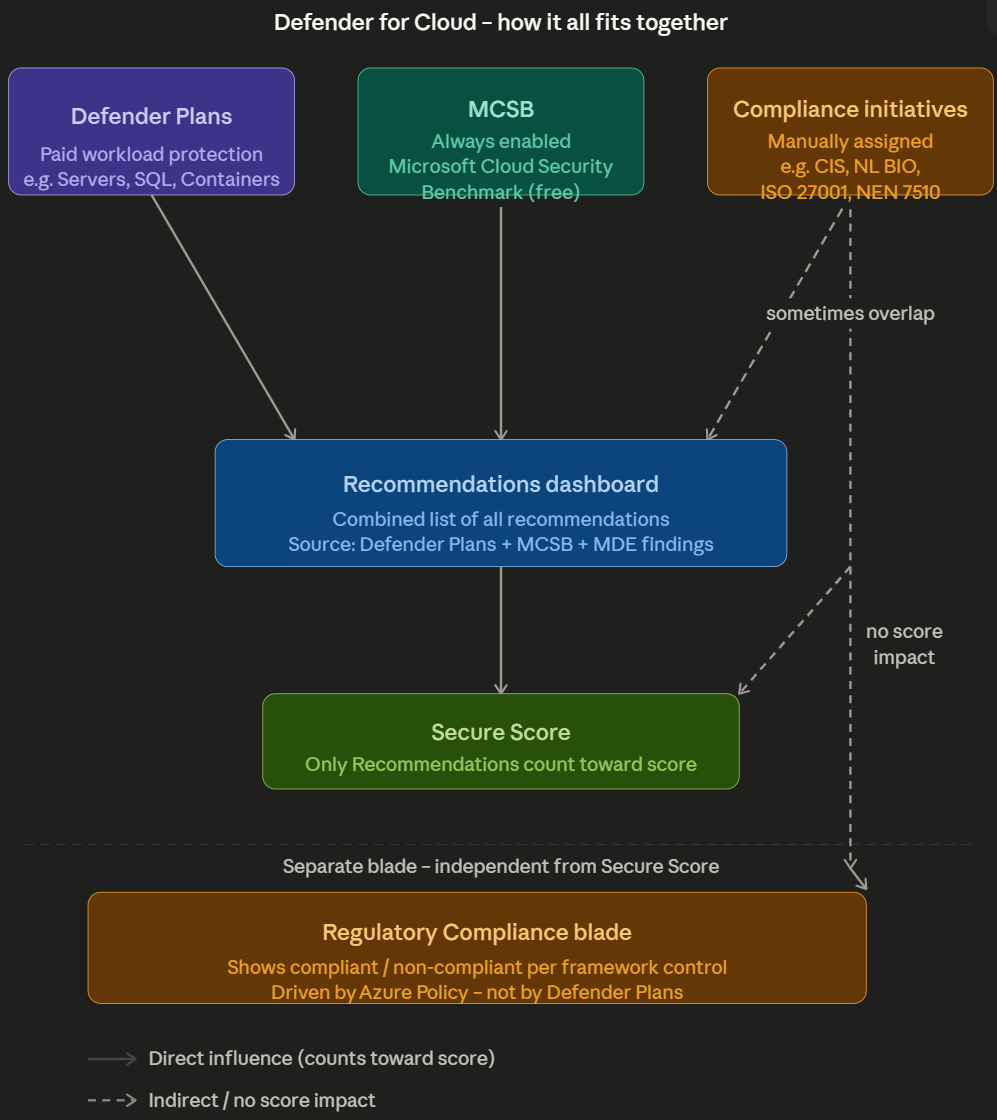
The Three Pillars
Defender for Cloud is built on three distinct sources, each with a different purpose.
1. Defender Plans
Defender Plans are the paid layer of Defender for Cloud. You enable them per resource type, per subscription or management group. Without a plan you only get the free MCSB baseline. With a plan you get active protection, threat detection, vulnerability assessment, and additional recommendations for that specific workload type.
The available plans are:
Defender for Servers: the most commonly used plan. Plan 1 gives you Microsoft Defender for Endpoint (MDE) integration and Just-in-Time VM access. Plan 2 adds vulnerability assessment via Microsoft Defender Vulnerability Management (the built-in Qualys integration was retired in May 2024), file integrity monitoring via the MDE agent, agentless disk scanning, and network map visualization. Adaptive application controls and adaptive network hardening were retired in 2024 and no longer appear in new environments. Covers Azure VMs and Arc-enabled servers.
Defender for Containers: protects AKS clusters, container registries (ACR), and the Kubernetes control plane. Provides runtime threat detection, misconfiguration assessments at cluster and node level, and image scanning in ACR.
Defender for SQL: covers Azure SQL Database, SQL Managed Instance, and SQL Server on VMs (via Azure Arc). Detects SQL injection attempts, anomalous access patterns, and provides vulnerability assessments at database level.
Defender for Storage: scans blobs for malware (via Microsoft Threat Intelligence), detects suspicious access patterns, and alerts on data exfiltration attempts.
Defender for App Service: monitors App Service Plans for exploitation attempts, dangling DNS, and suspicious outbound connections.
Defender for Key Vault: alerts on unusual access patterns, for example a service principal suddenly bulk-reading secrets or accessing from an unknown location.
Defender for Resource Manager: monitors ARM operations at subscription level. Detects privilege escalation via ARM, lateral movement, and suspicious deployments.
Defender for DNS: detects DNS-based exfiltration, domain generation algorithms (DGA), and communication with known C2 domains. Runs transparently on Azure DNS without an agent.
Defender for APIs: scoped specifically to APIs published through Azure API Management (not arbitrary APIs running on App Service or AKS). Provides inventory and risk scoring of API endpoints, detects anomalous traffic patterns, and flags sensitive data exposure and exfiltration attempts via API calls.
Defender CSPM: not a workload plan but a Cloud Security Posture Management plan. Adds attack path analysis, cloud security explorer, agentless scanning, and governance workflows on top of the free posture management you get by default.
2. MCSB: Always On
MCSB stands for Microsoft Cloud Security Benchmark. It is Microsoft’s own collection of security best practices, based on a combination of CIS Controls, NIST SP 800-53, and Microsoft’s own cloud security experience.
MCSB is divided into domains such as Network Security, Identity Management, Privileged Access, Data Protection, and Asset Management. Per domain there are controls with an ID (e.g. NS-1, IM-3, PA-7), and per control there are concrete Azure-specific recommendations backed by an Azure Policy definition.
Why it is effectively always on: Microsoft assigns MCSB as the default initiative at subscription level when you onboard to Defender for Cloud. It is not recommended to remove this assignment: doing so breaks your Secure Score calculation and removes the baseline that all other compliance frameworks map against. In practice, treat it as non-negotiable. It is the primary source of your Secure Score, and it is the common denominator to which all other compliance frameworks in Defender for Cloud are cross-mapped. CIS, NL BIO, ISO 27001: they all have explicit mappings to MCSB controls published as part of the MCSB documentation itself. MCSB is essentially the internal language of Defender for Cloud.
For client conversations the simplest explanation is: MCSB is what Microsoft considers important, compliance frameworks are what regulations or certifications require. Sometimes they overlap, sometimes they don’t.
3. Compliance Initiatives: Manually Assigned
Regulatory Compliance initiatives are Azure Policy initiative definitions that translate an external security framework or regulation into measurable Azure Policy controls. You assign them to a subscription or management group, and Defender for Cloud shows the results in the Regulatory Compliance blade.
An initiative is a bundle of Policy definitions, where each definition represents one control from the framework. Defender for Cloud continuously evaluates your resources against those definitions and shows per control whether you are compliant.
Available built-in initiatives (managed by Microsoft):
International
- CIS Microsoft Azure Foundations Benchmark (v1.x, v2.x)
- NIST SP 800-53 Rev 4 / Rev 5
- ISO/IEC 27001:2013 (legacy) and ISO/IEC 27001:2022 (current standard, recommended for new assignments)
- SOC 2 Type 2
- PCI DSS v3.2.1 / v4.0
Netherlands / Europe
- NL BIO Cloud Thema: specific to Dutch government organizations
- NEN 7510: healthcare sector
- EU GDPR
- BIO Thema Clouddiensten
Other
- SWIFT CSP
- FedRAMP
- HIPAA / HITRUST
You can also build your own custom initiative, for example an internal baseline that you maintain as a standard across client environments. Defender for Cloud picks it up automatically in the Regulatory Compliance blade.
Important limitation: not every control in a framework has an automatically measurable Policy definition. Controls that cover processes, people, or physical security cannot be evaluated automatically and will show as “not applicable” or require manual attestation.
The Recommendations Dashboard
The Recommendations dashboard is the central place where Defender for Cloud tells you what is wrong and what to do about it. It is a continuously evaluated feed based on the current state of your resources.
Behind every recommendation sits an Azure Policy definition with effect AuditIfNotExists or Audit. Defender for Cloud evaluates those definitions continuously and translates the result into a recommendation with a healthy/unhealthy/not applicable status per resource.
What you see when you open a recommendation:
- Severity: High / Medium / Low, determined by Microsoft
- Secure Score impact: how many points you gain by resolving it
- Affected resources: exactly which resources are unhealthy
- Remediation steps: description of what to do, sometimes with a Quick Fix button
- Related policy: the underlying Policy definition
- Freshness interval: how often the evaluation repeats (30 minutes to 24 hours depending on the check)
Exemptions: per resource or per subscription you can exempt a recommendation. An exemption has two types: Waiver (we accept the risk) and Mitigated (we have addressed it another way). Exemptions are visible in compliance reporting and carry an expiry date. Exempted resources are removed from both the numerator and the denominator of the Secure Score calculation, so they have a neutral effect.
The key distinction: the Recommendations dashboard is the action list. The Regulatory Compliance blade is the reporting layer. Some items overlap, but Recommendations are always the starting point for actual remediation and Secure Score improvement.
The Regulatory Compliance Blade
The Regulatory Compliance blade is a per-framework dashboard, driven by Azure Policy. For each assigned framework it shows:
- Compliant / Non-compliant / Not applicable per control
- Which Azure Policy definitions back each control
- Which specific resources are non-compliant, with a direct link to the resource
- An overall compliance percentage per framework
The compliance percentage is calculated as: (compliant controls / total controls) × 100. This number is purely indicative because not every control carries the same weight.
What you do NOT see here:
- No Secure Score impact
- No automatic remediation (unless the policy itself has a
deployIfNotExistseffect) - No information about active threats or attacks; that is the Security Alerts blade
How the Secure Score Is Calculated
The Secure Score is a weighted percentage showing how well your resources comply with the MCSB recommendations. It is not a simple average; there are two levels of weighting.
Recommendations are grouped into Security Controls, such as “Enable MFA”, “Apply system updates”, or “Restrict unauthorized network access”. Each control has a maximum point value set by Microsoft, somewhere between 1 and 10 points.
Points within a control are awarded proportionally based on the ratio of healthy to applicable resources, not as strict all-or-nothing. The Microsoft documentation phrases it as: “To get all the possible points for a security control, all of your resources must comply with all of the security recommendations.” In practice that means partial compliance yields partial points.
The formula per control, as published in the Microsoft documentation:
Score per resource   = Max points / Total applicable resources
Current control score = Score per resource × Healthy resources
“Applicable resources” excludes resources marked “not applicable” and exempted resources, which is why exemptions have a neutral effect on the ratio. Recommendations in preview are excluded from the calculation entirely, even if they appear in the recommendations list. Scores per control are recalculated every eight hours, while underlying recommendations refresh more frequently, so brief mismatches between recommendation-level and control-level resource counts are normal.
A control can contain multiple recommendations, each evaluating a different aspect of the same security control. The applicable resources denominator is deduplicated across all recommendations within that control.
The total score:
Secure Score % = (sum of achieved points) / (sum of max points) × 100What counts and what does not:
| Source | Counts toward score |
|---|---|
| MCSB recommendations | Yes, this is the primary source |
| Defender Plan recommendations linked to MCSB controls | Yes |
| Defender Plan recommendations that are threat-based or plan-specific | No, informational only |
| Regulatory Compliance initiatives (CIS, ISO, NL BIO, etc.) | No |
| Custom initiatives | No, unless the recommendation is explicitly added to the MCSB scope |
| Exemptions | Neutral, excluded from both healthy and unhealthy counts |
| Preview recommendations | No, excluded from score calculation even if visible in the recommendations list |
The distinction for Defender Plans matters in practice. Enabling Defender for Storage, for example, surfaces recommendations like “Storage accounts should have malware scanning enabled” that tie back to MCSB data protection controls and do affect Secure Score. But it also generates threat alerts and detection-based findings that appear in the portal without being tied to a scored recommendation. The rule of thumb: if there is a Max Score column showing a number, it counts. If it shows “Not scored”, it does not.
Practical implication: to improve your Secure Score efficiently, do not focus on the most recommendations but on the controls with the highest max points and the lowest healthy ratio. One fix that makes ten resources compliant in a high-value control delivers far more than ten individual fixes in low-value controls.
You can query this directly via Azure Resource Graph:
SecurityResources
| where type == 'microsoft.security/securescores/securescorecontrols'
| extend controlName = properties.displayName
| extend current = properties.score.current
| extend max = properties.score.max
| extend healthy = properties.healthyResourceCount
| extend unhealthy = properties.unhealthyResourceCount
| project controlName, current, max, healthy, unhealthy
| order by max desc
This gives you the top controls where the most score is to be gained , useful for health check reports and client conversations.
Note on two Secure Score models: Defender for Cloud now offers two separate score calculations. The classic model described above is shown in the Azure portal and is based on MCSB control compliance. A newer risk-based Cloud Secure Score is available in preview in the Microsoft Defender portal, with a different calculation that incorporates asset risk and criticality. The two numbers are not comparable and reflect different things. This article describes the classic model.
Bringing It Together
The confusion around Defender for Cloud usually comes from one of these three scenarios:
Scenario 1: “The machine is compliant in CIS but still shows a recommendation.” The recommendation comes from MCSB, not from the CIS initiative. There are two common reasons this happens: either the two frameworks use different Policy definitions with different evaluation logic or thresholds, or they use the same Policy definition but with different scoping (initiative parameters, resource type filters, or exclusions). A CIS control might scope to production-tagged resources only, while MCSB evaluates everything. Same underlying check, different verdicts.
Scenario 2: “Fixing the recommendation did not improve my compliance percentage.” The recommendation feeds the Secure Score via MCSB. The compliance percentage in the Regulatory Compliance blade is driven by a separate Policy initiative. Fixing the MCSB finding does not automatically fix the compliance finding if the underlying Policy definition differs.
Scenario 3: “My compliance percentage dropped but I didn’t change anything.” New resources were deployed that are non-compliant by default. Because Secure Score uses a ratio, adding unhealthy resources pulls the percentage down even if existing resources stay the same.
Understanding these three pillars (Defender Plans, MCSB, and Compliance Initiatives) and knowing which one generated a finding is the foundation for having a clear conversation with clients about what the numbers actually mean.